حِفْظthe teacher's handbook
How to run your class with Hifz Journey
Four short chapters with real screenshots: enroll a student, run a class day, set tomorrow's assignments, and follow every journey. Fifteen minutes, start to finish.
Accounts are invited by your program admin — signed in already? Everything below matches what's on your phone.
Two ideas carry the whole app
You mark who is present and how each student recited. Nobody ever types a progress number: pages memorized, juz completed, attendance percentages and every report are calculated from those daily entries.
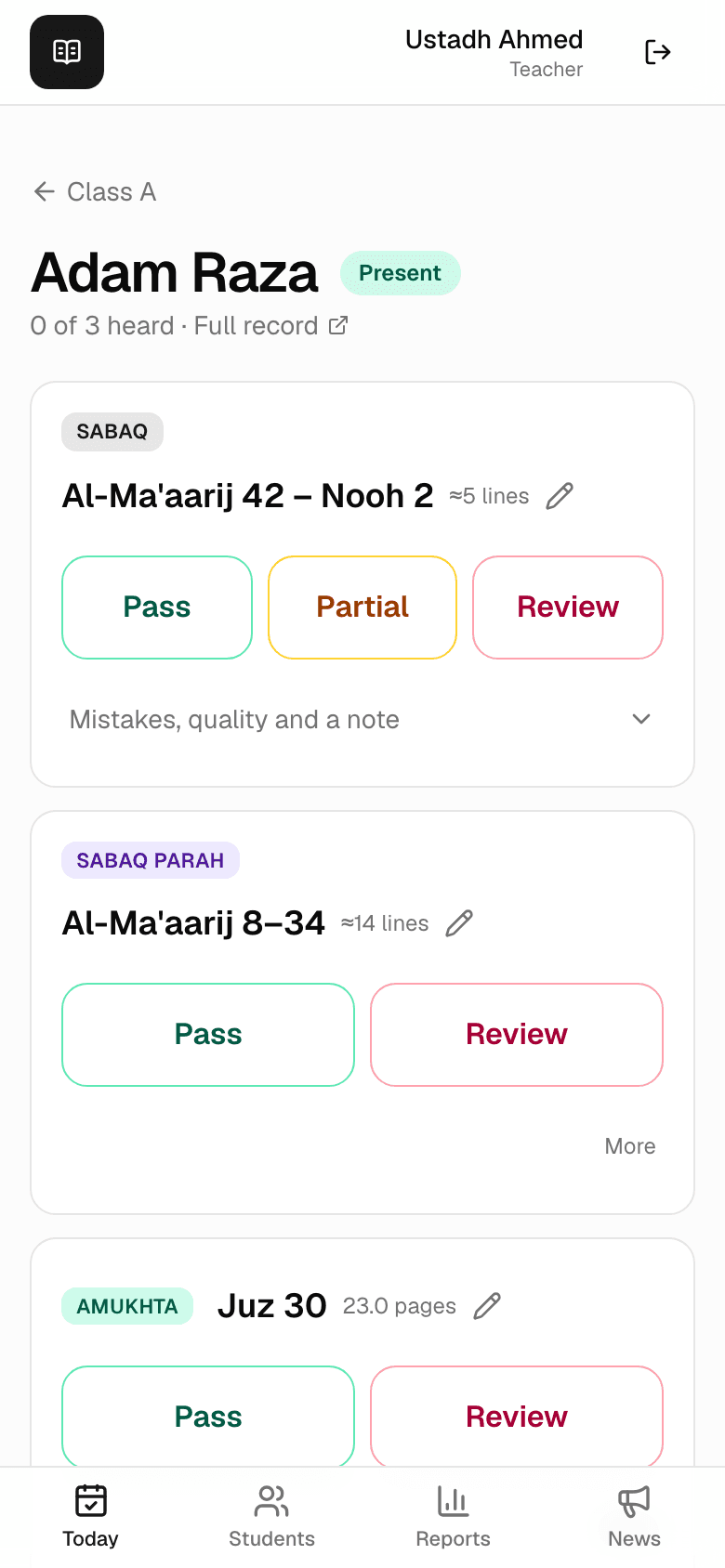
Sabaq is the new portion — the only lesson that moves progress forward. Sabaq Parah keeps the last few portions fresh. Amukhta revises old juz in rotation. Each is heard and marked Pass · Partial · Review · Not tested.
Amounts are in lines of the standard 15-line Madani mushaf (604 pages); longer ranges are shown in pages. All screenshots below are the real app with example students.
Enroll a student, start to finish
From empty form to a child on your Today board — two minutes, including the parent's invitation. You can do all of it yourself: teachers add students to their own classes.
Open Students and tap “Add student”
The Students tab lists everyone in your classes. The Add student button at the top puts a new child straight into your class — no admin needed.
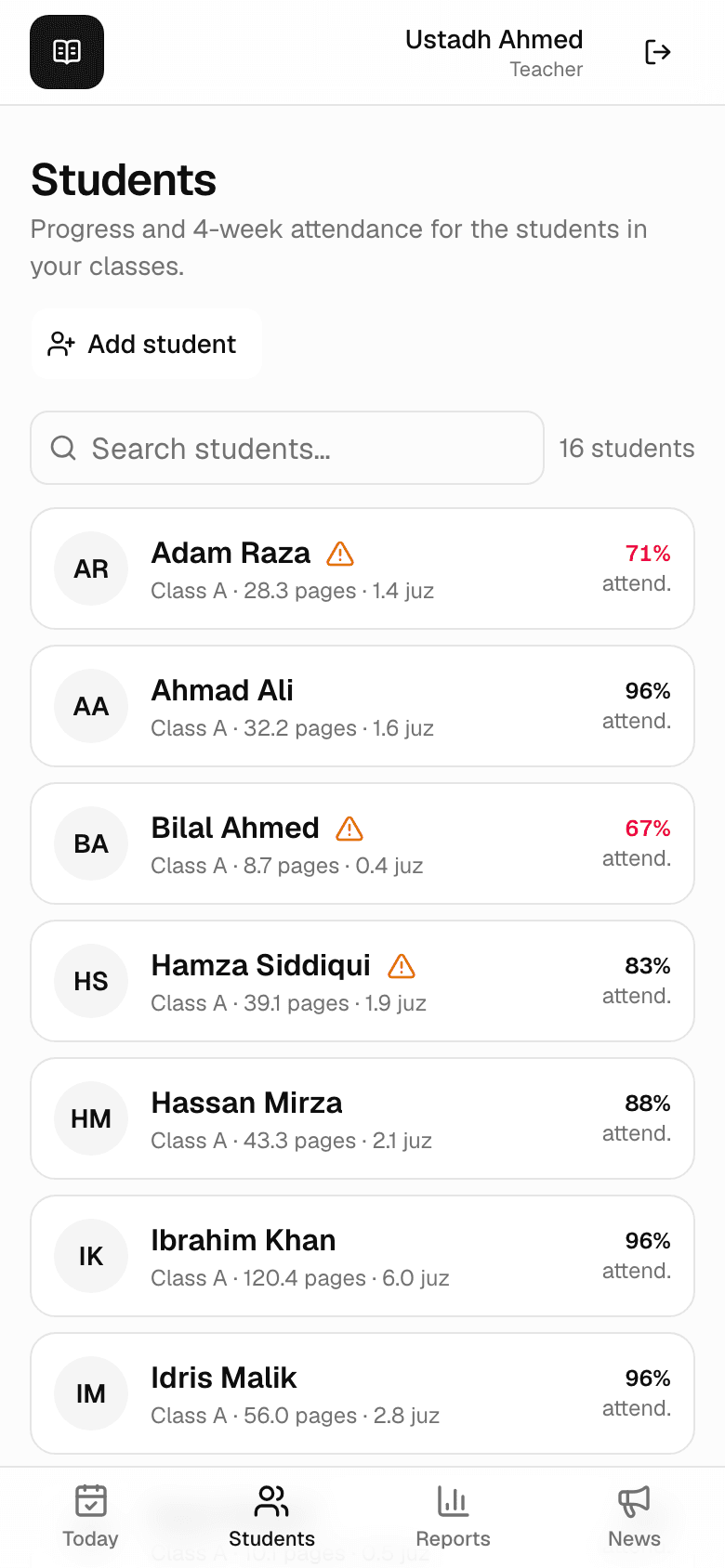
Your roster, with “Add student” at the top Fill in the basics
First and last name, birth year (age is calculated — no full date of birth is stored), the enrollment date, and the class they join. Only the name and class truly matter on day one; everything else can be edited later from the student's profile.
Daily Sabaq (lines) is how much new memorization the app proposes per day — 5 lines is a third of a page, a common starting pace.
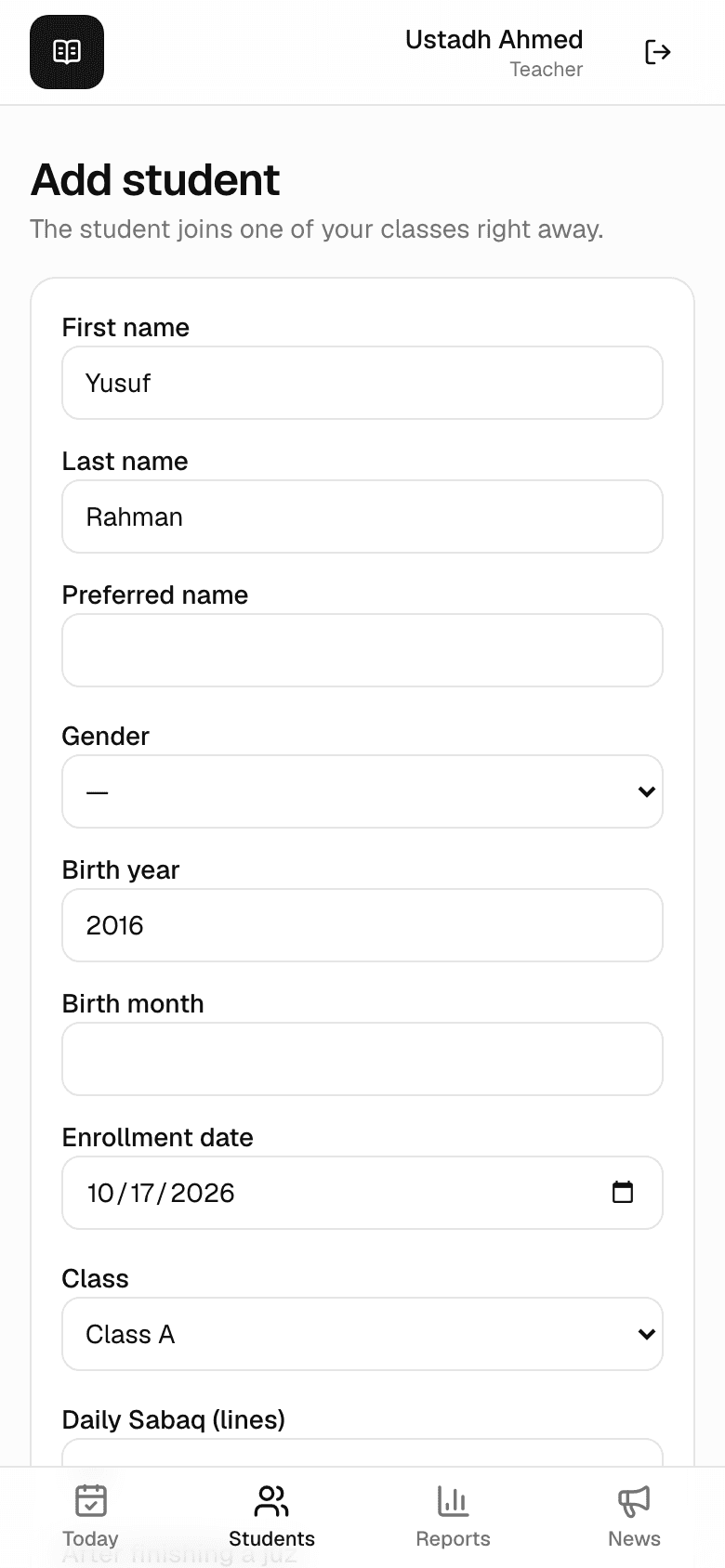
The Add student form Invite the parent in the same breath (optional)
At the bottom of the form, add the parent's name and email and they are invited automatically — the email names their child, and their account shows only that child's journey. You can skip this and invite later from the student's edit page.
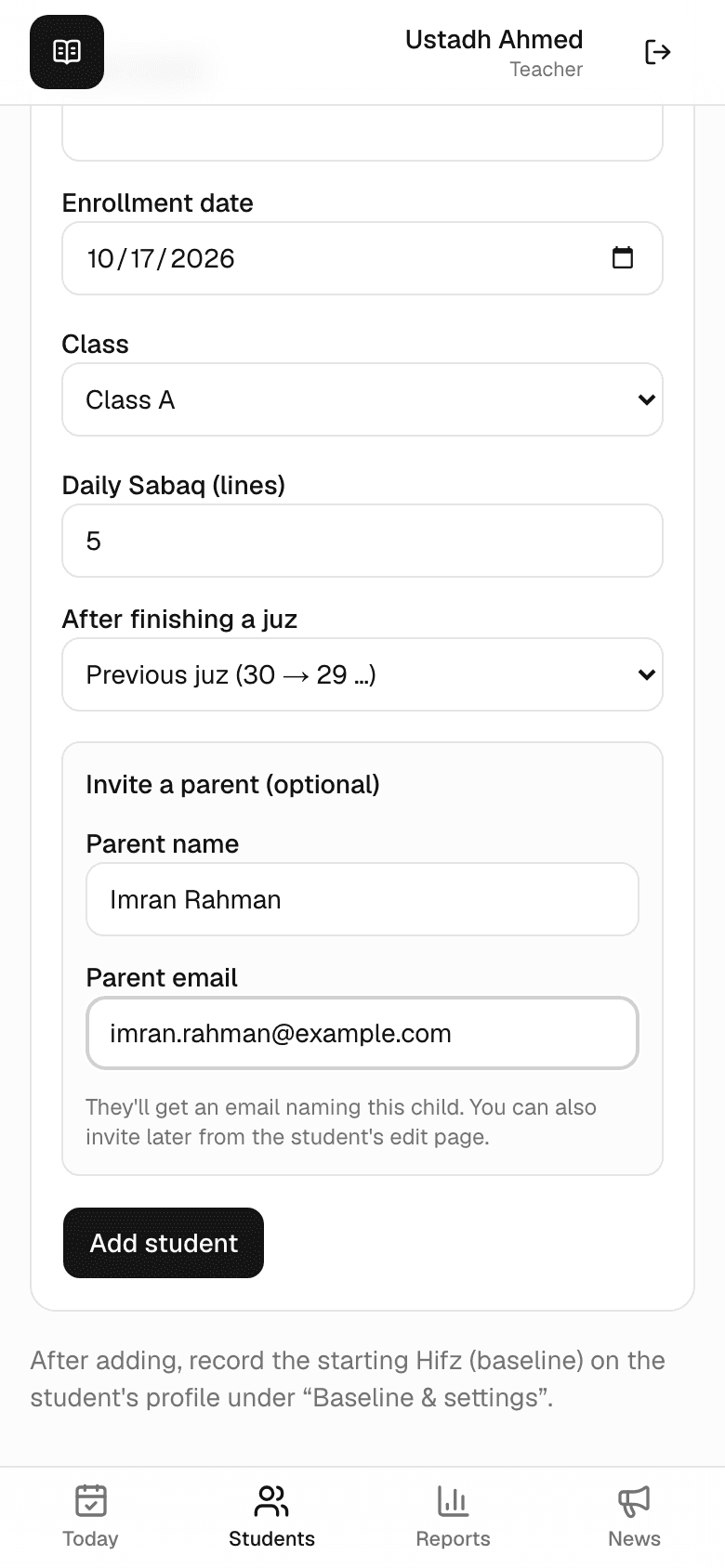
Parent name + email — invited in the same submit Add — and the student exists everywhere
One tap on Add student and the confirmation names what happened: the student is enrolled in your class, the parent's invitation is on its way. The new name is already on your Today board and in your roster.
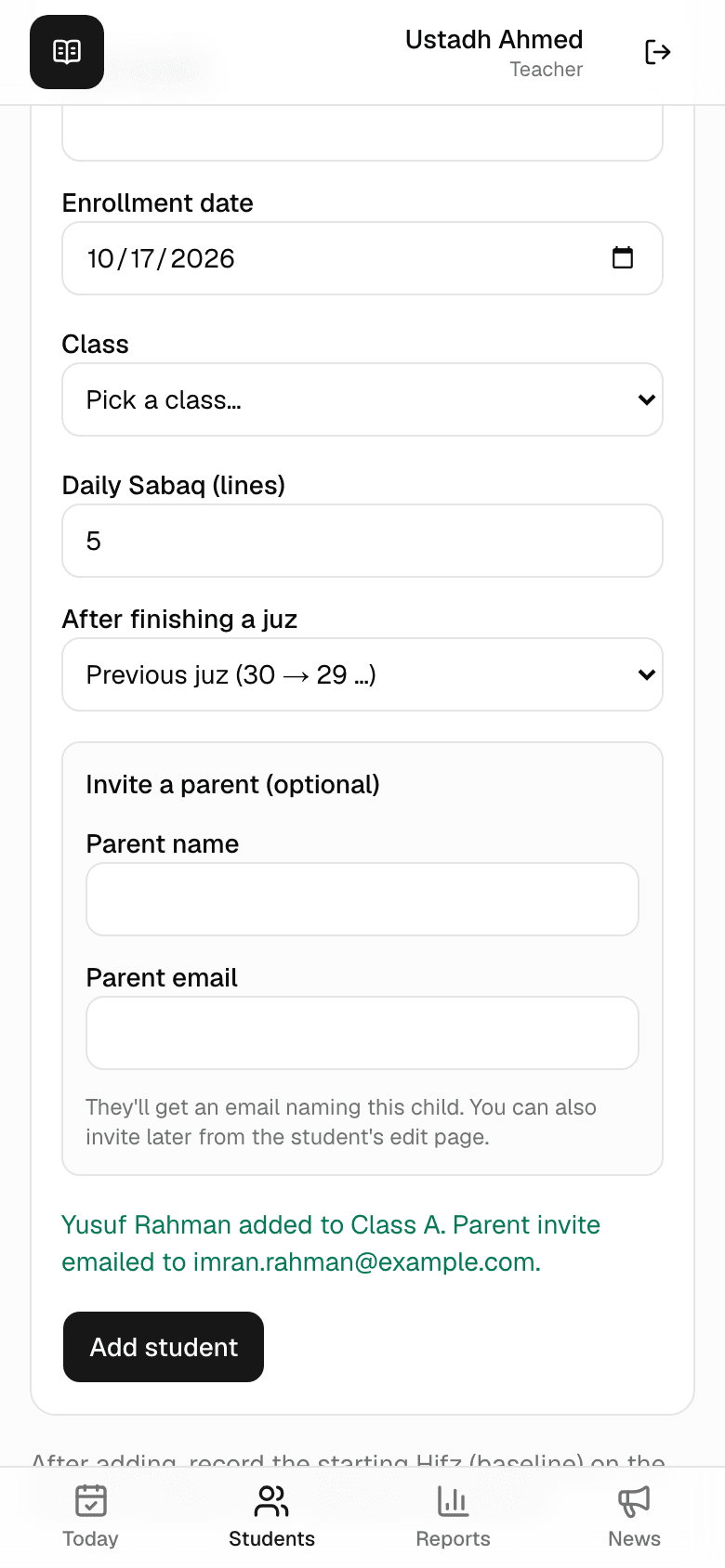
The confirmation after adding Record the baseline — the most important step
Open the new student's profile and go to the Baseline section. The baseline is what the child had already memorized before joining — a student who arrives knowing Juz 30 should have it recorded here, covering whole juz where true.
Everything downstream is built on it: progress bars, pages memorized, and what the app proposes each day. A student with no baseline simply starts from the beginning.
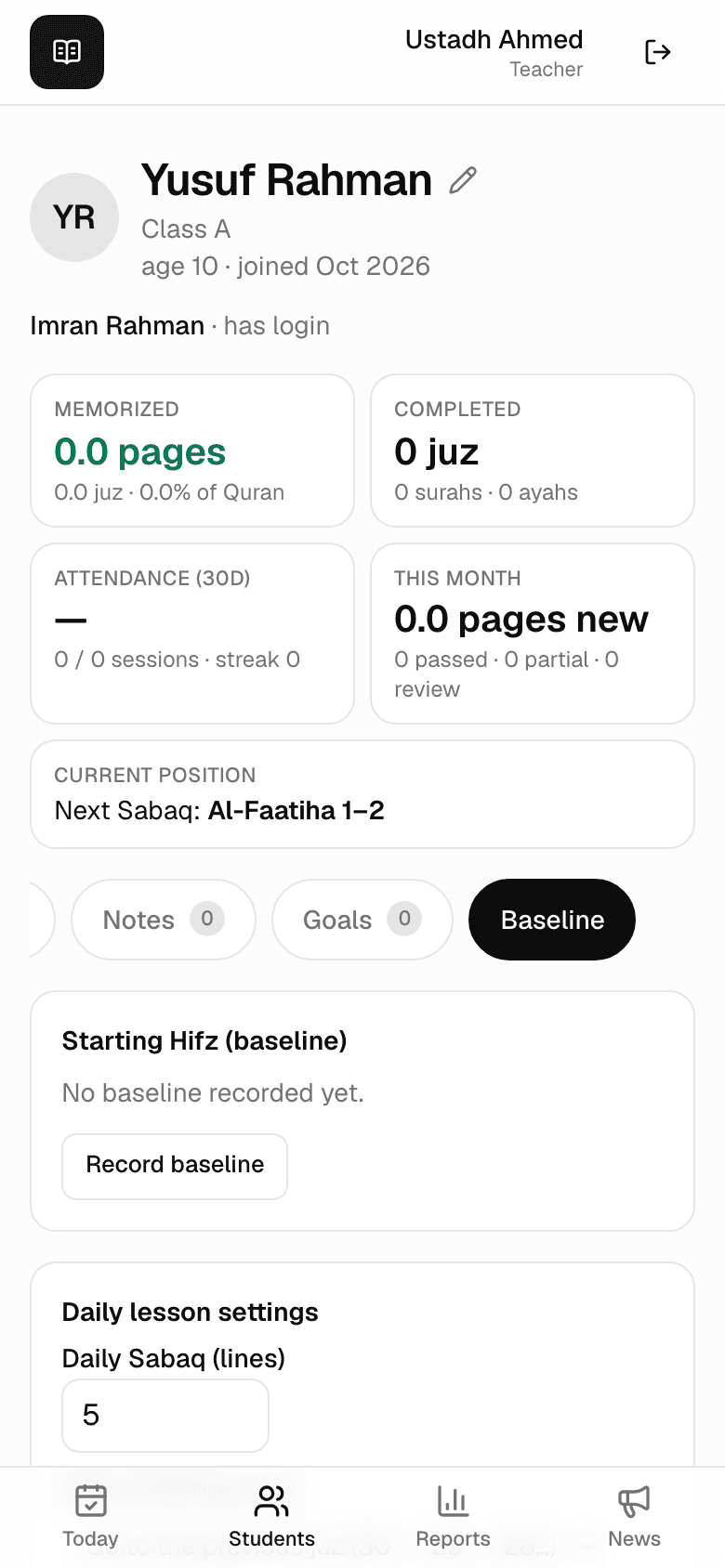
“Record baseline” on the new student's profile Check the daily lesson settings
Below the baseline: lines of Sabaq per day, which juz comes after a finished one (backwards 30 → 29 is the usual order), and whether parents may comment on the day's results. The defaults are sensible — adjust them as you learn the student's pace.
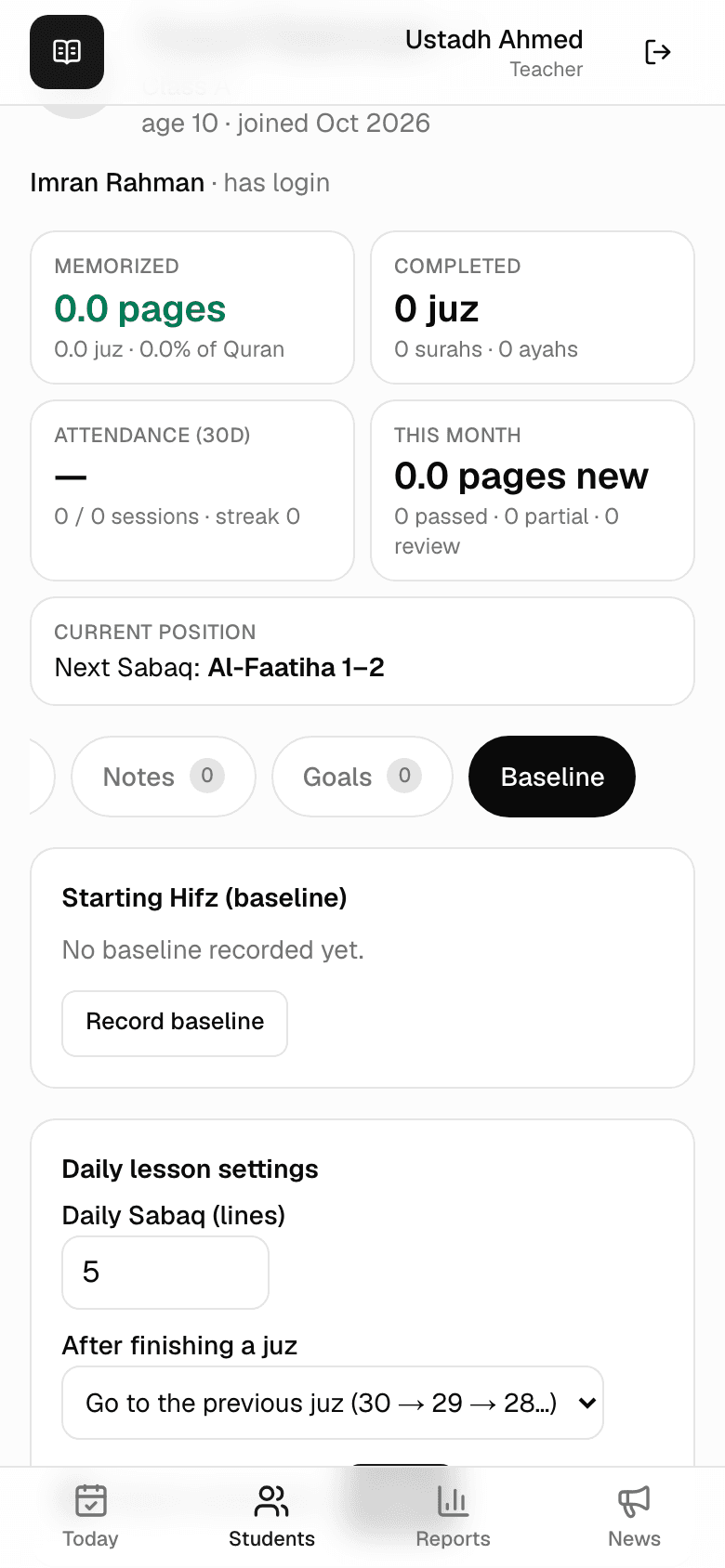
Daily lesson settings, under the baseline
Run a class day
The daily loop on the Today screen: start the session, take attendance, hear each student. For most students the entire record is one tap per lesson.
Open Today and start the session
Everything for the day happens on one screen: Today. Tap Start today's session once at the beginning of class — if you teach more than one class, each has its own tab at the top. A session started by mistake can be removed at the bottom of the board.
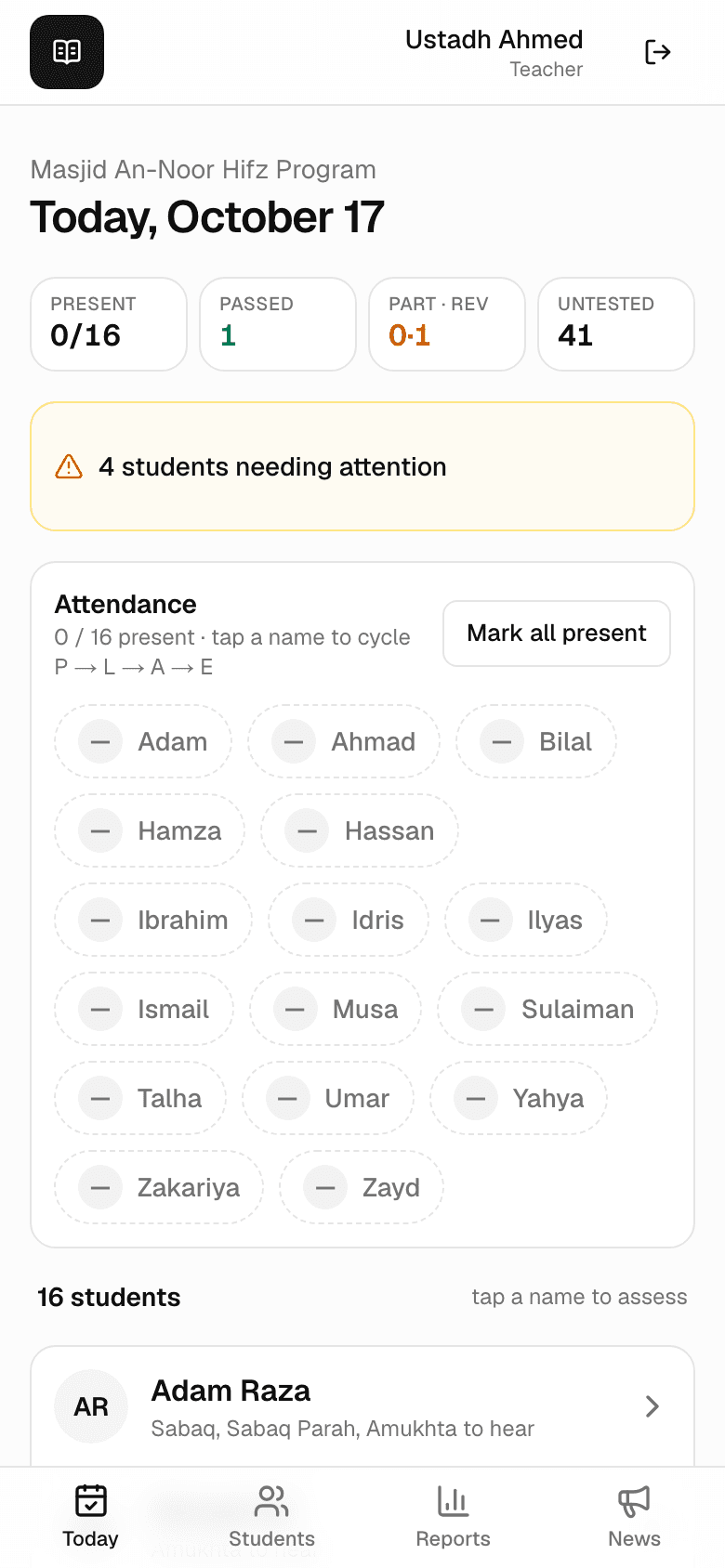
A fresh day on the Today screen Take attendance
The attendance strip appears with every name. Tap a name to cycle Present → Late → Absent → Excused, or save yourself fifteen taps with Mark all present and then tap only the exceptions.
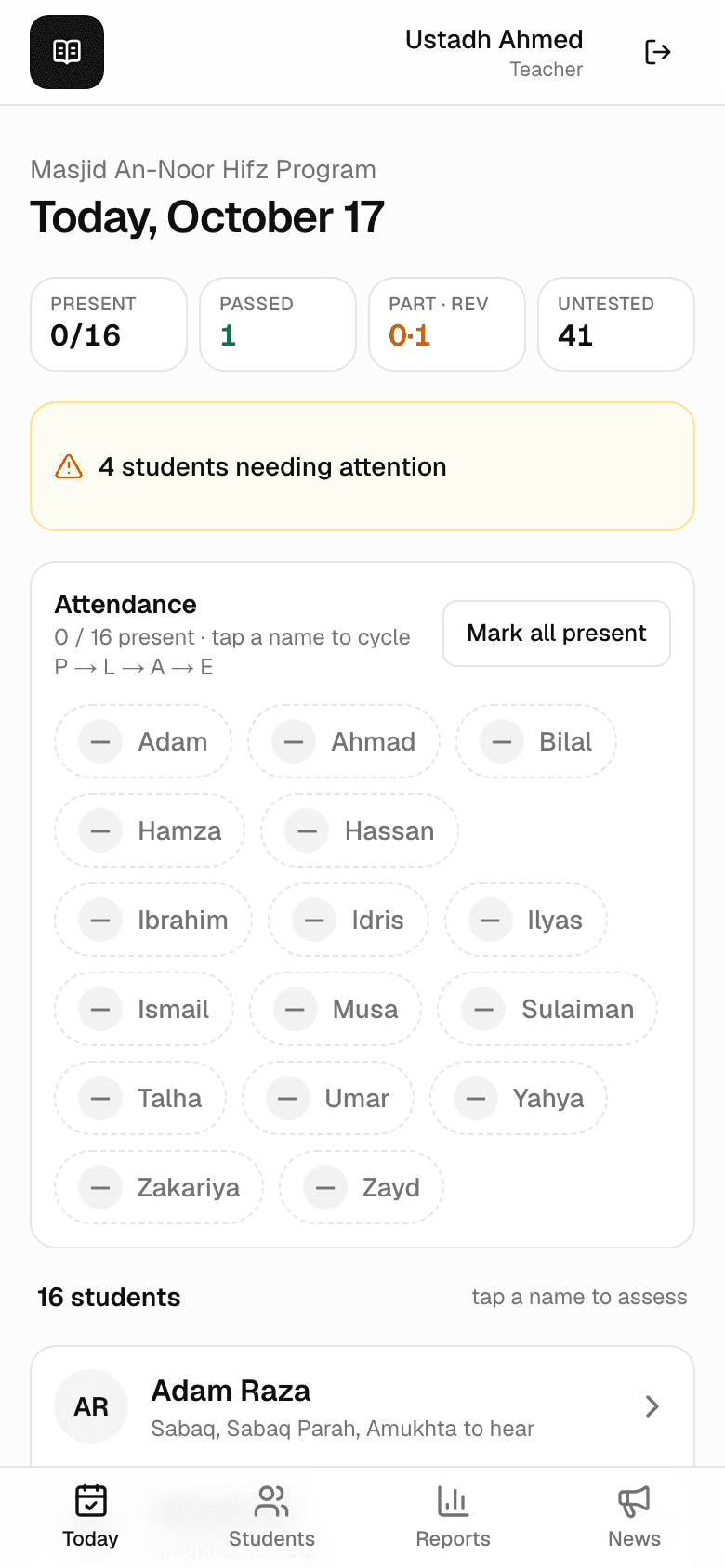
One chip per student, “Mark all present” above …and it folds away when it's done
Marked chips turn green (P), amber (L), rose (A), blue (E). Once everyone is marked the strip folds into a one-line summary — tap Edit any time a latecomer walks in. Attendance keeps itself from here: percentages, streaks and reports all follow.
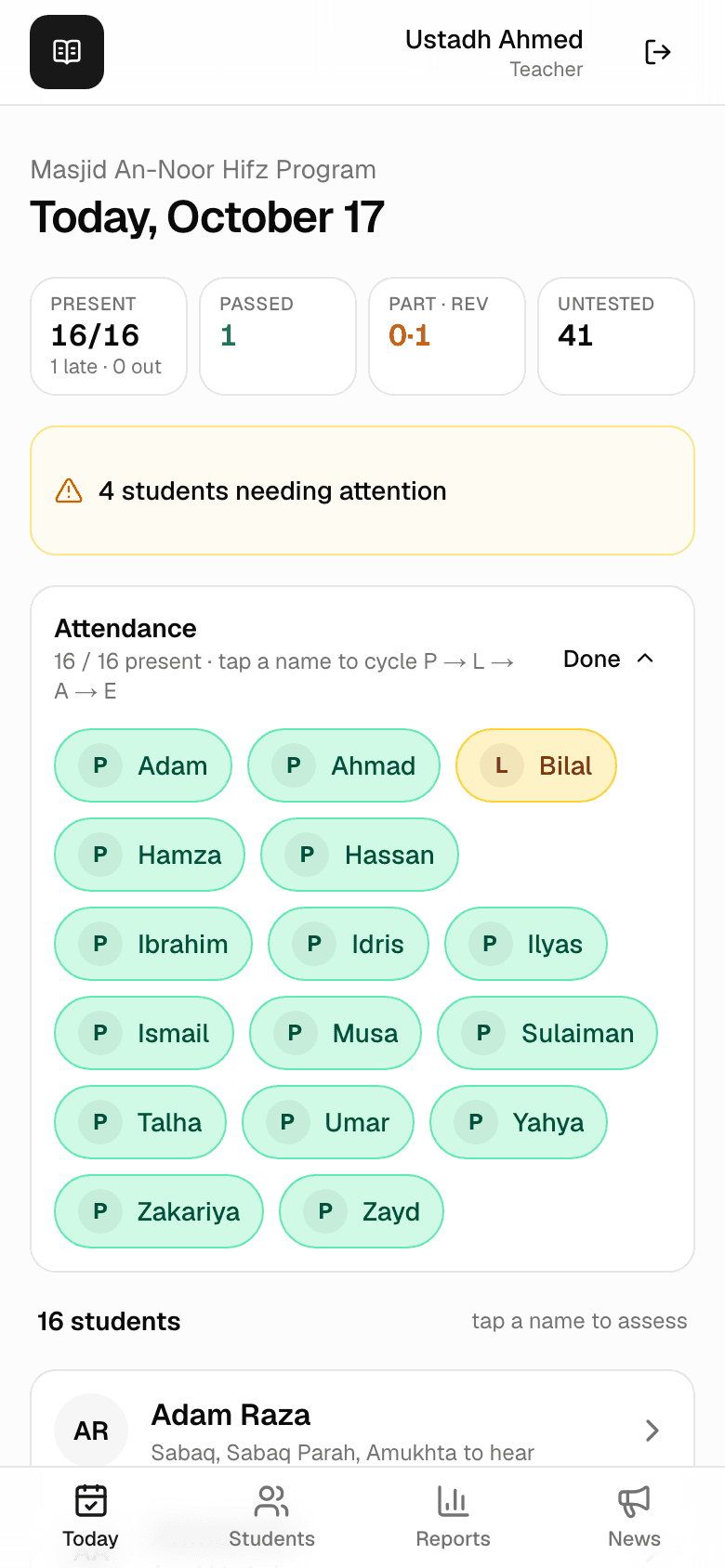
15 present, Bilal late — the day keeps score Give everyone their work in one tap
If students have nothing assigned yet, Suggest today's work for all proposes each student's three lessons from where they truly are — no page math. The roll then shows every name with what is still to hear, like “Sabaq, Sabaq Parah, Amukhta to hear”.
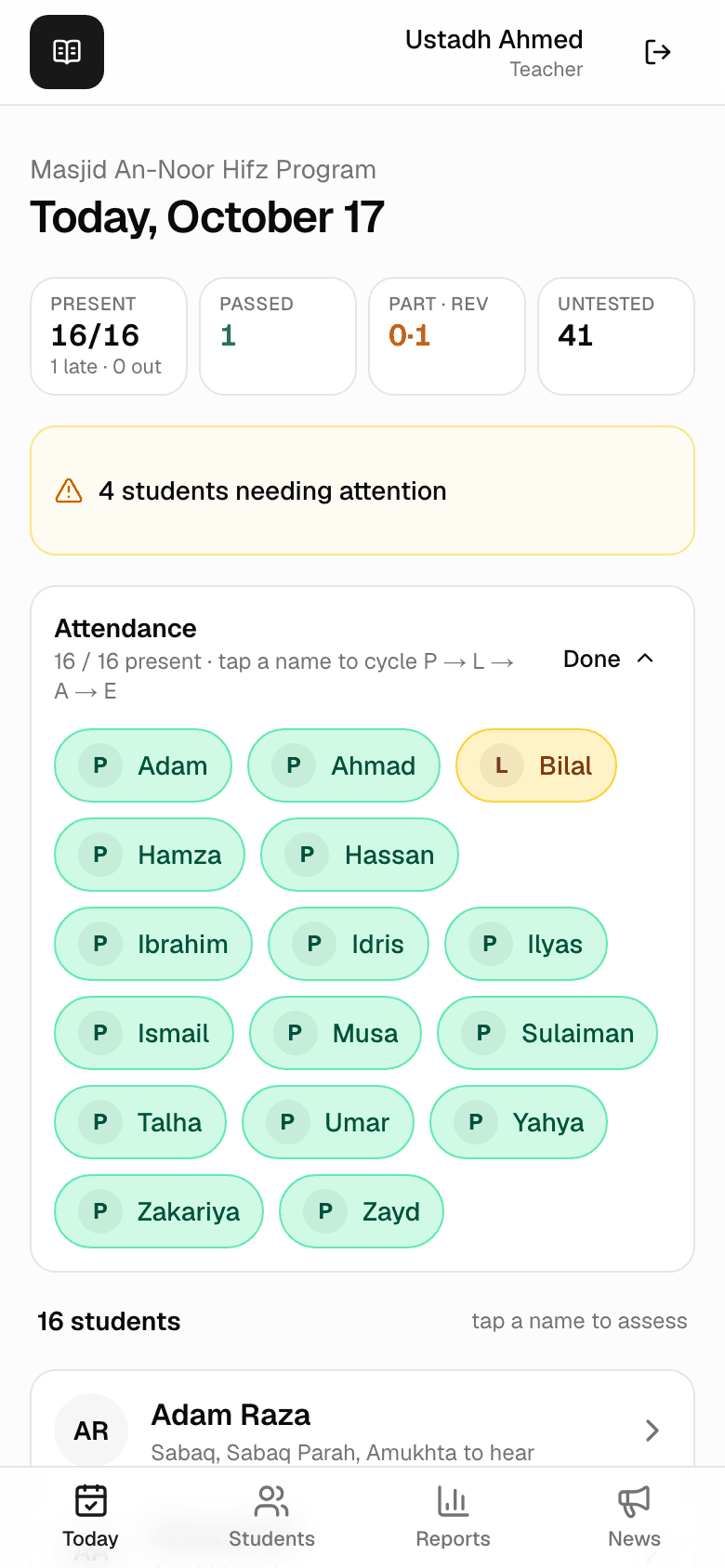
The roll — tap a name to assess Open a student and listen
Each name opens that student's page for the day: up to three cards. Sabaq takes Pass, Partial or Review; Sabaq Parah and Amukhta are strictly Pass or Review. For most students, one tap per card is the entire record.
The pencil beside any range edits what was actually recited — useful when a student prepared more or less than assigned.
Three lessons, big friendly buttons Add detail only when it matters
The Mistakes, quality and a note disclosure opens a mistake counter, a quality score out of five, mistake types (forgot ayah, tajweed, fluency…), and a note — the family sees the note, so write it to them. Skip all of this when there's nothing to say.
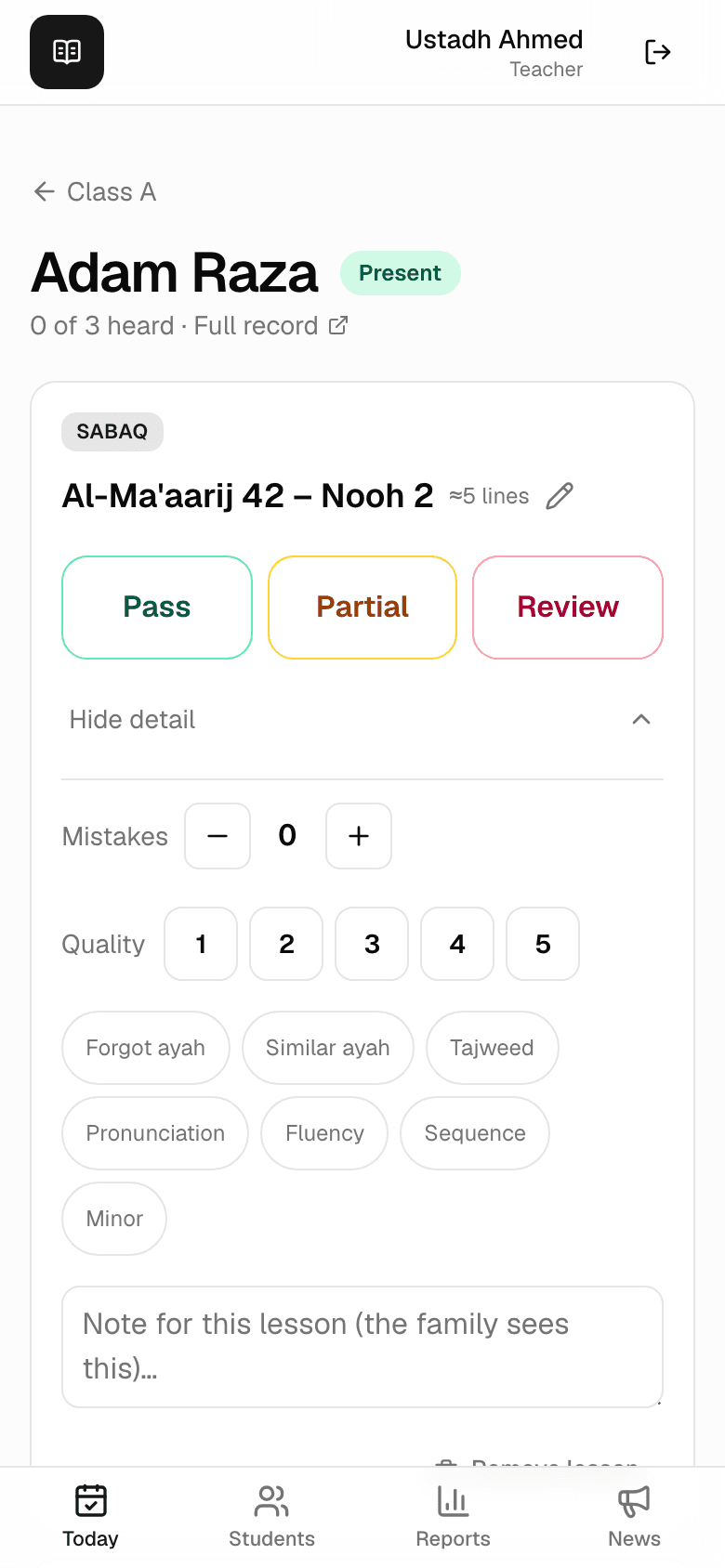
Mistakes, quality, and a note the family sees A green check means done
Back on the roll, a student's initials become a green check once every lesson is heard; absent students dim, and their untested work never counts against them.
A speech-bubble badge on a row means a parent left a comment nobody has read yet — opening the student clears it.
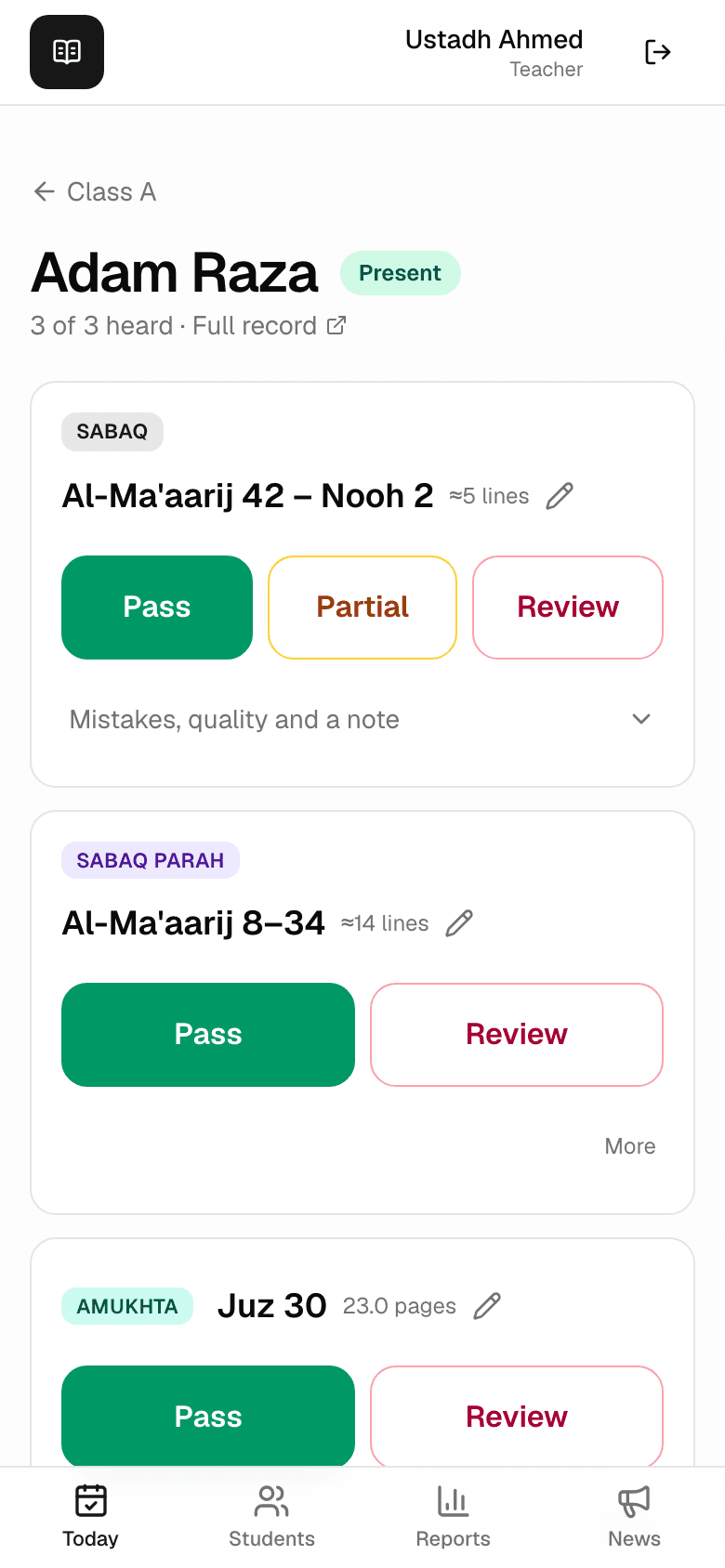
All three heard — this student's day is recorded
Set the assignments
Hifz Journey knows the mushaf — every page, every line. From today's results and each student's daily portion it works out exactly which ayahs come next, and you stay in charge of every range.
Plan tomorrow from today's result
At the bottom of each student's page, Plan proposes tomorrow in one tap: the next Sabaq continuing from what was passed today, the last three portions merged as Sabaq Parah, and the next memorized juz as Amukhta. A portion that was marked Partial or Review is proposed again instead of advancing.
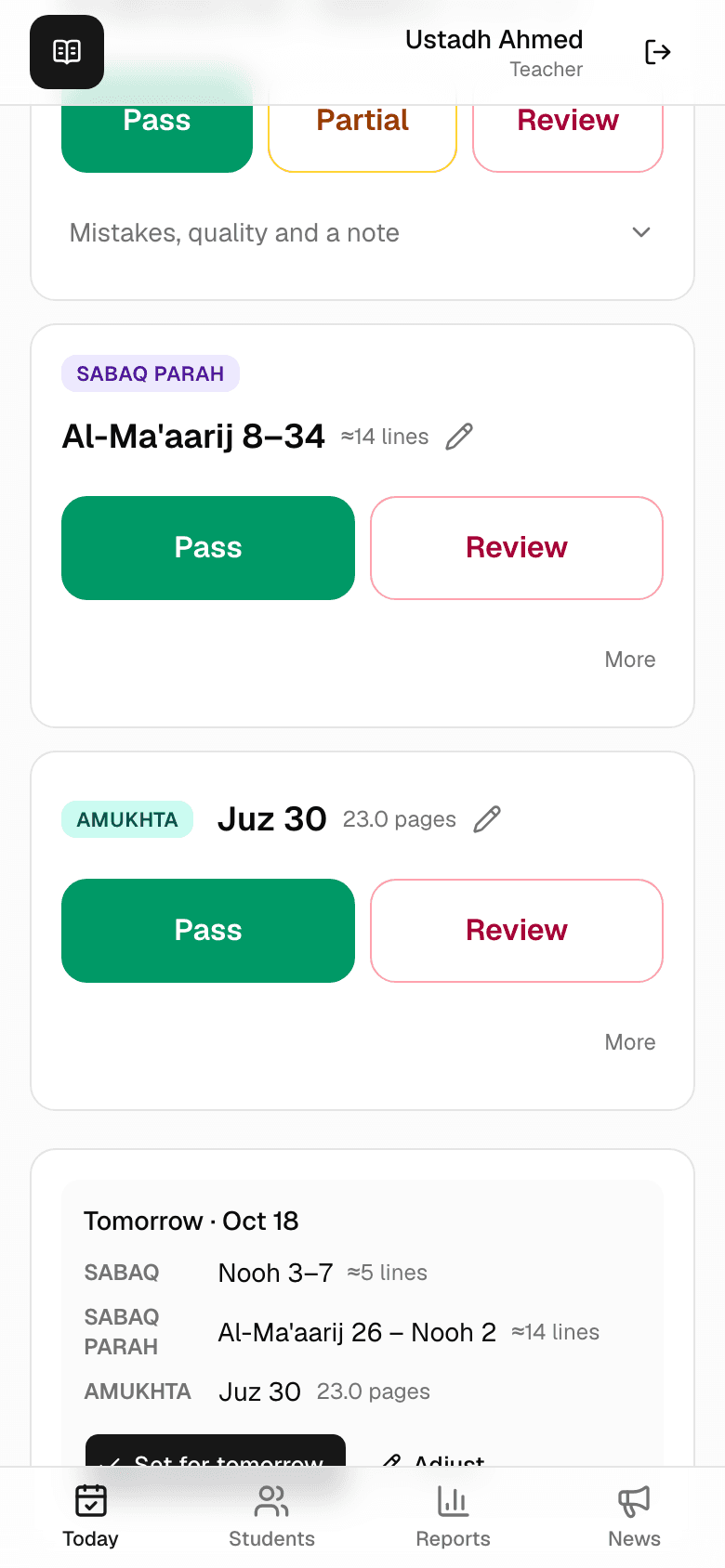
Tomorrow, proposed — Sabaq, Sabaq Parah, Amukhta Adjust anything before saving
Adjust opens every range for editing — surah and ayah, start and end. Teach the amount you know the student can carry.
When no Amukhta is suggested (the student has no complete juz on record yet), you can add one by hand right here — or better, fix the baseline so the suggestion engine knows what they truly hold.
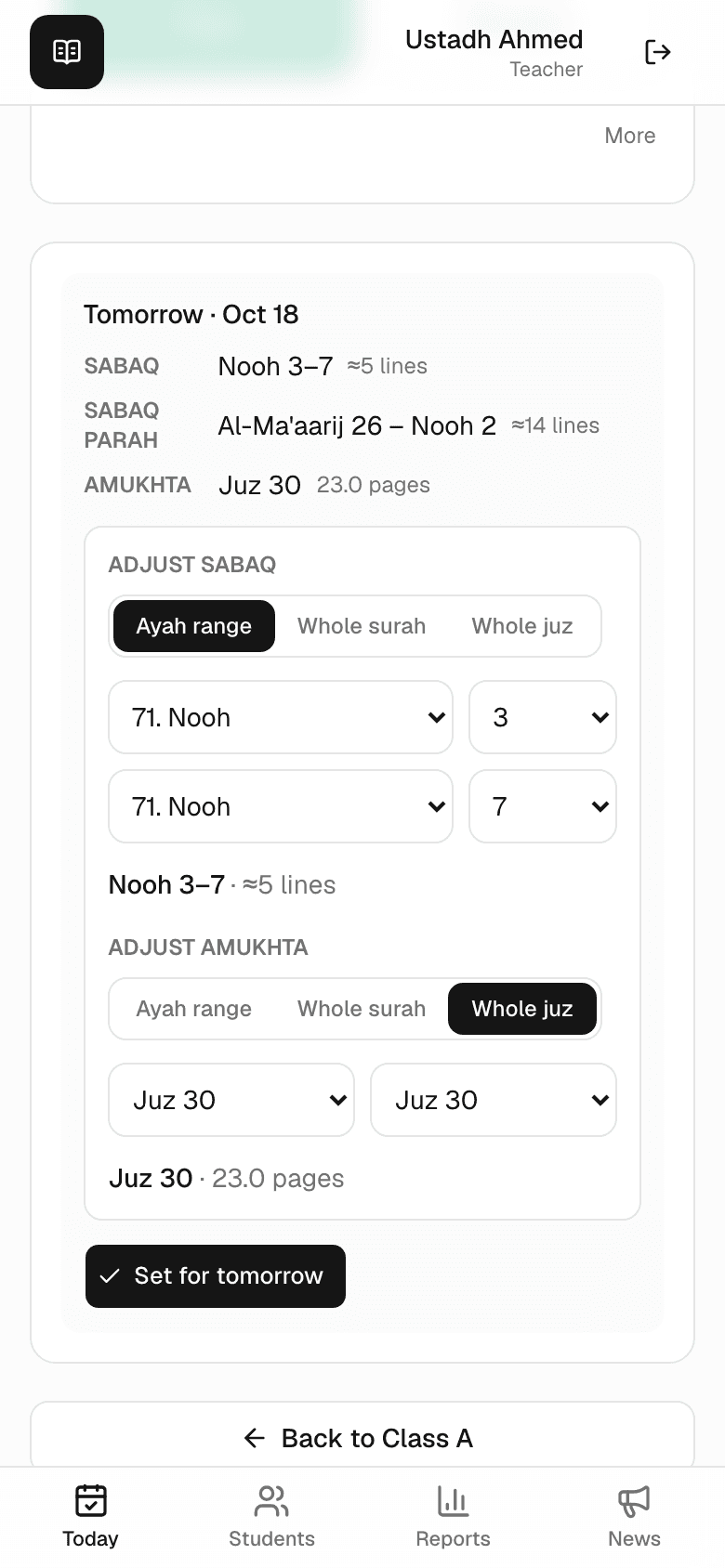
Every suggestion is editable Set it — tomorrow is ready before tonight ends
Set for tomorrow saves the plan. When the student opens their page tomorrow, the three cards are already waiting — and the family sees tonight what tomorrow asks of them.
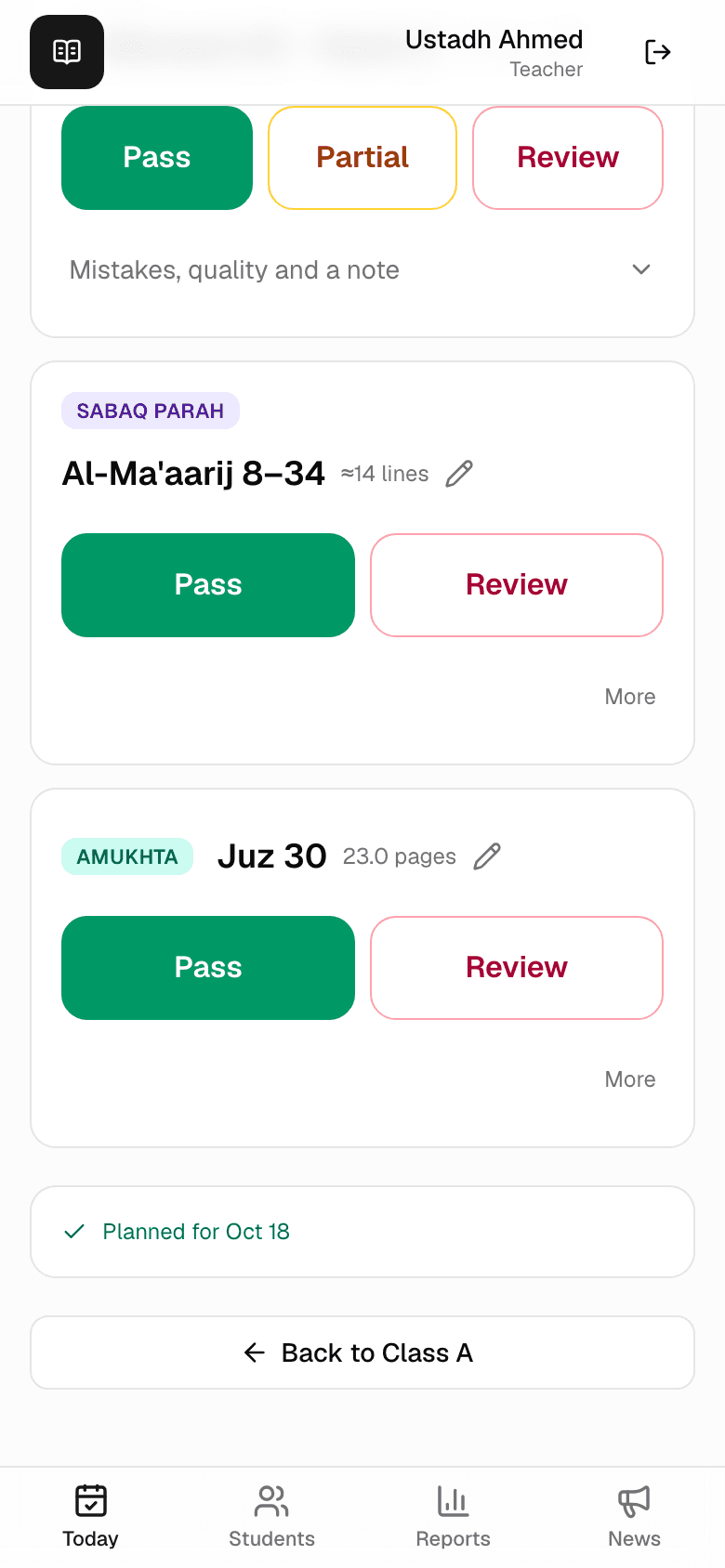
Planned — tomorrow's cards are set Or plan the whole class at once
The Wrap up card at the bottom of the board keeps score — how many assignments are still untested, who has no plan yet — and Plan tomorrow for N does every remaining student in one tap. That's the whole evening: attendance, listen, wrap up.
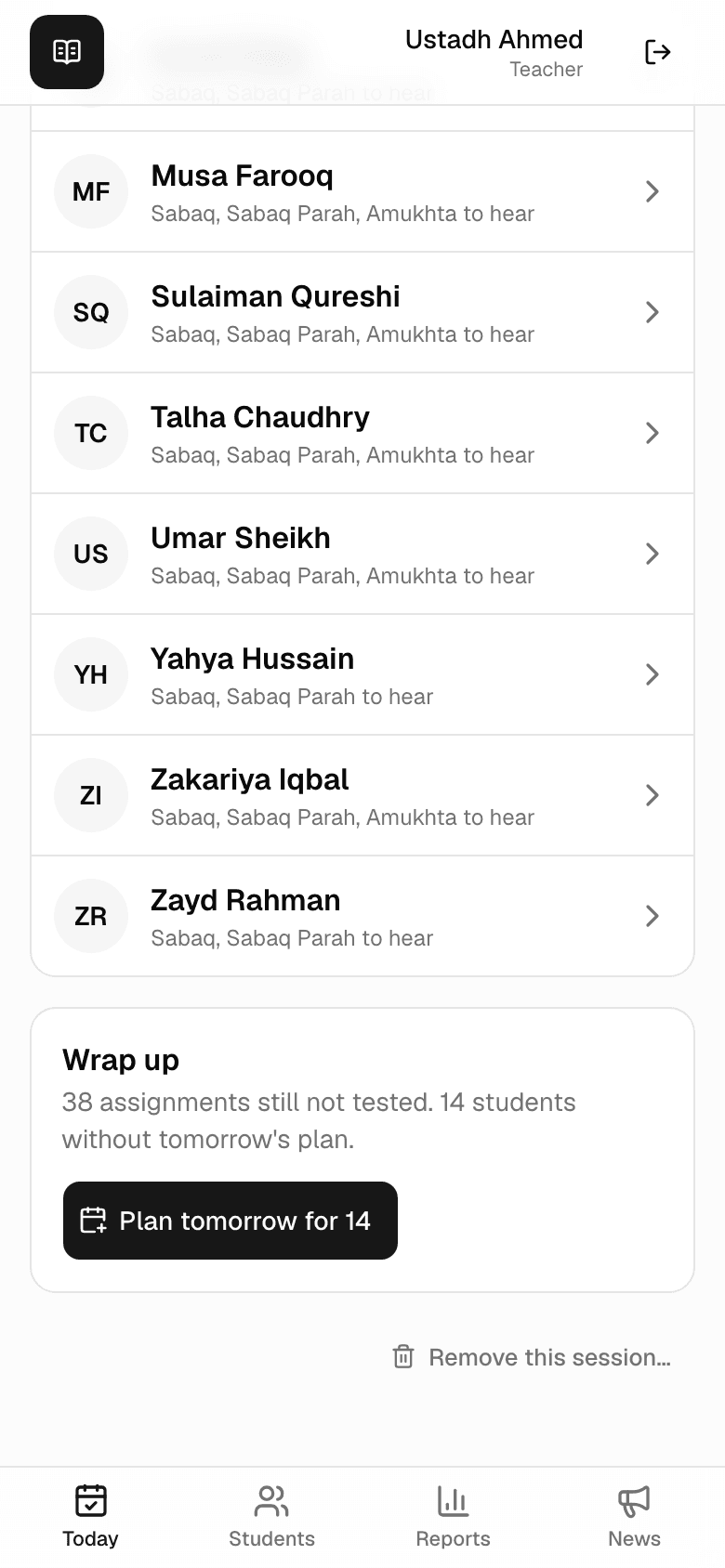
One tap plans the rest of the class Any lesson, any date — by hand
On a student's profile, the History tab has Add assignment: record a Sabaq, Sabaq Parah or Amukhta for any date — the way to catch up after a paper day, or to assign something out of the ordinary. Every figure in every report recalculates instantly.
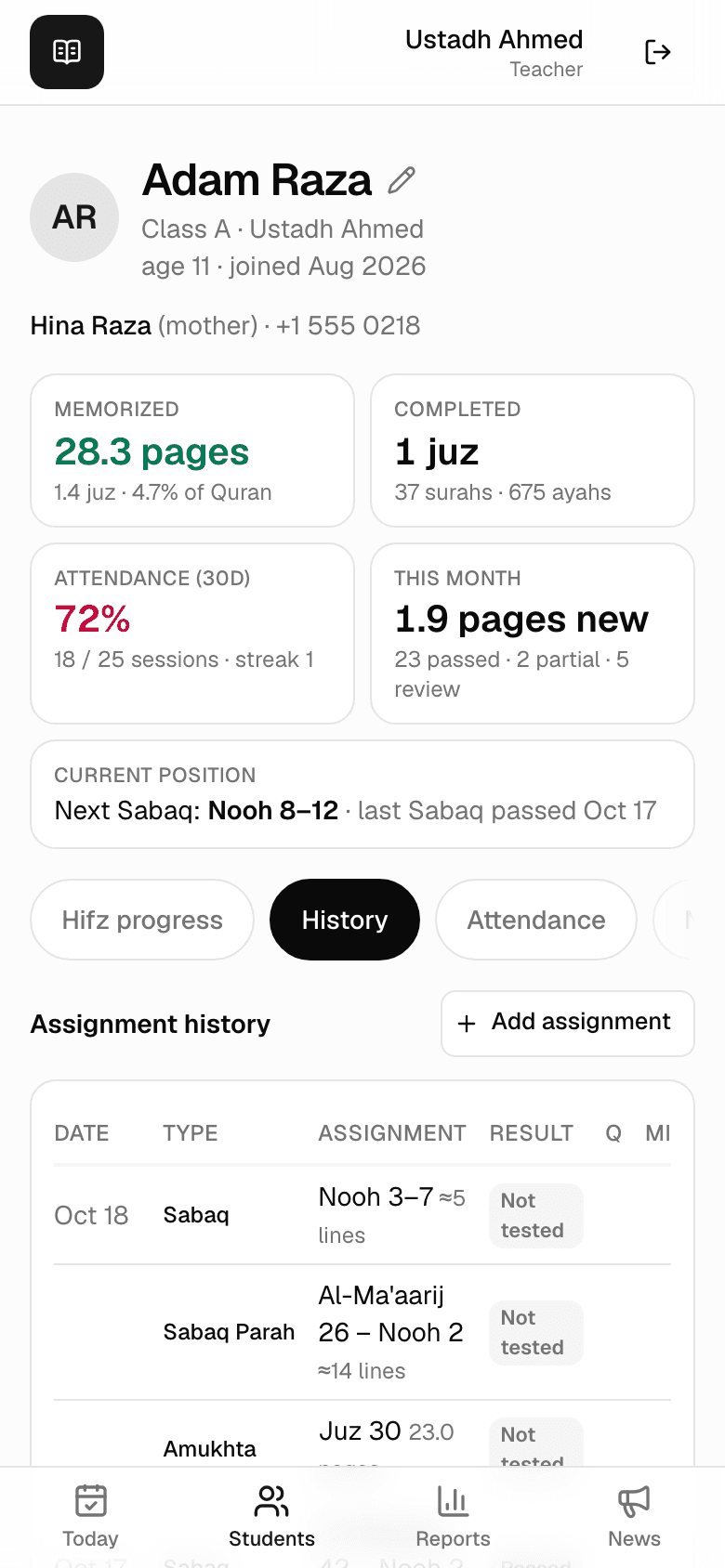
History — with “Add assignment” for any date
Follow the journey
Progress, history, attendance and printable reports — all derived from the days you recorded, all up to date the moment class ends. Parents see their own child's version of the same story, live.
The student's record — everything in one place
Tap any student to open their record: pages memorized, juz completed, attendance and this month's numbers up top, then Hifz progress — a bar per juz, tap one to drill into its surahs.
Nothing here is typed in. Every figure is calculated from the daily records — correct a past lesson and it all follows.
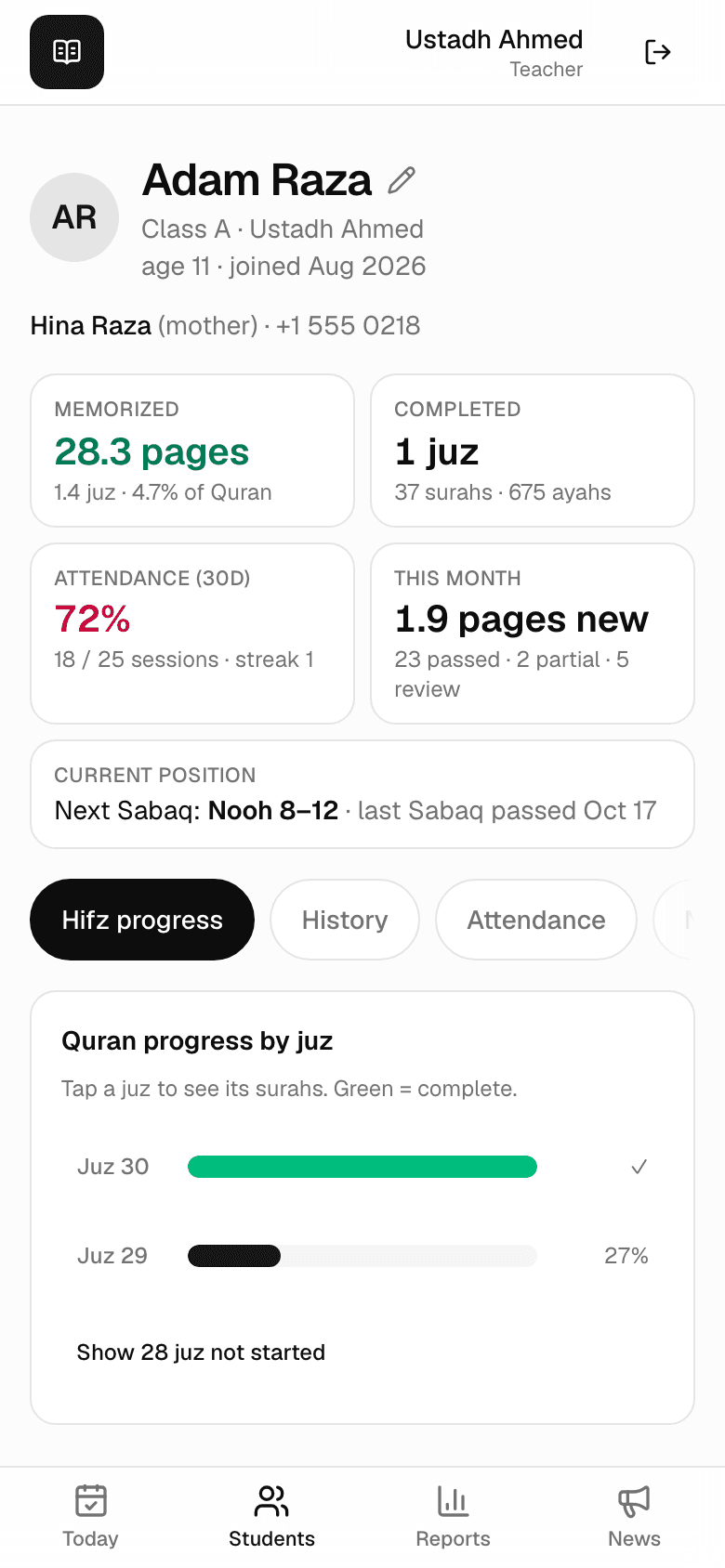
Quran progress, juz by juz Attendance at a glance
The Attendance tab shows a dot per session — green present, amber late, rose absent, blue excused — and the recent list in full. Percentages only count sessions held while the student was enrolled.
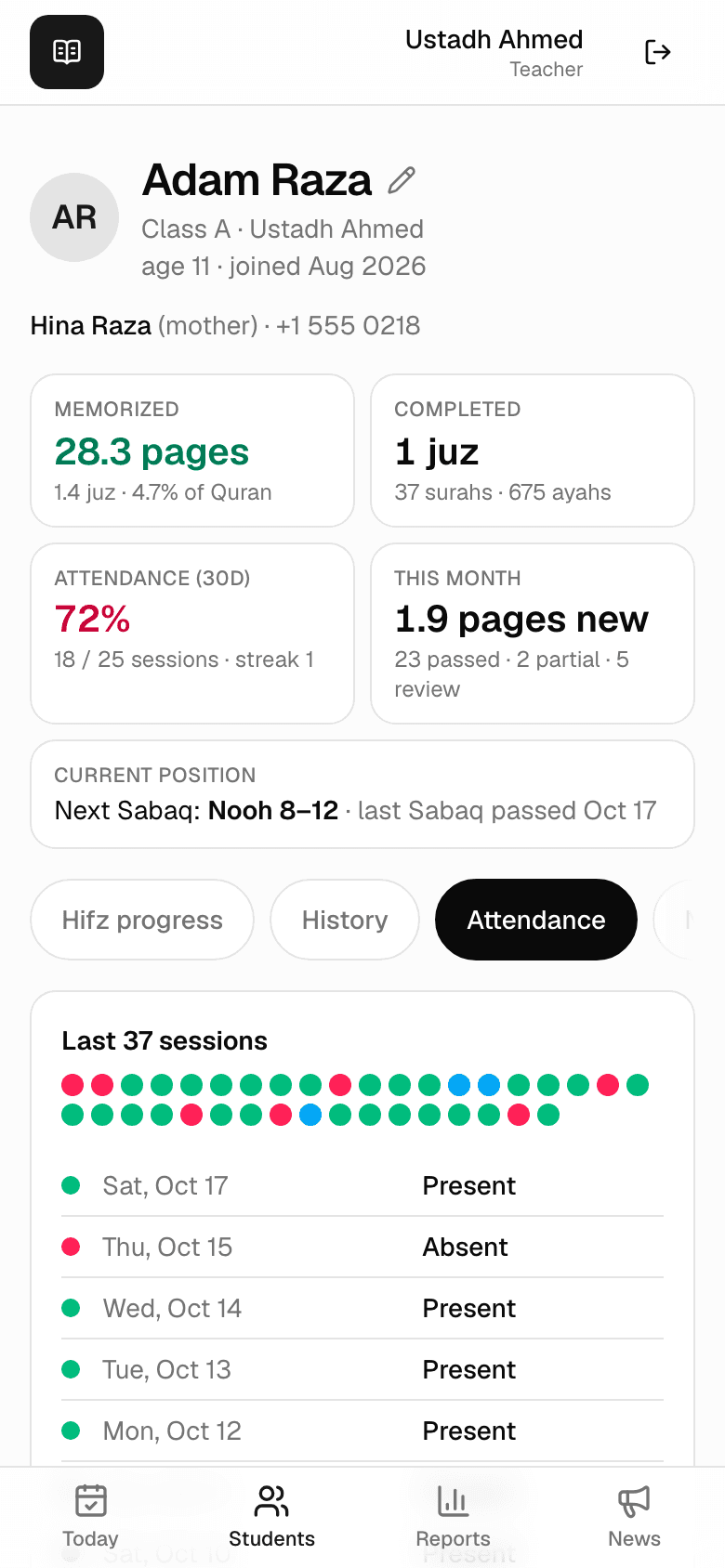
A dot per session The weekly class report
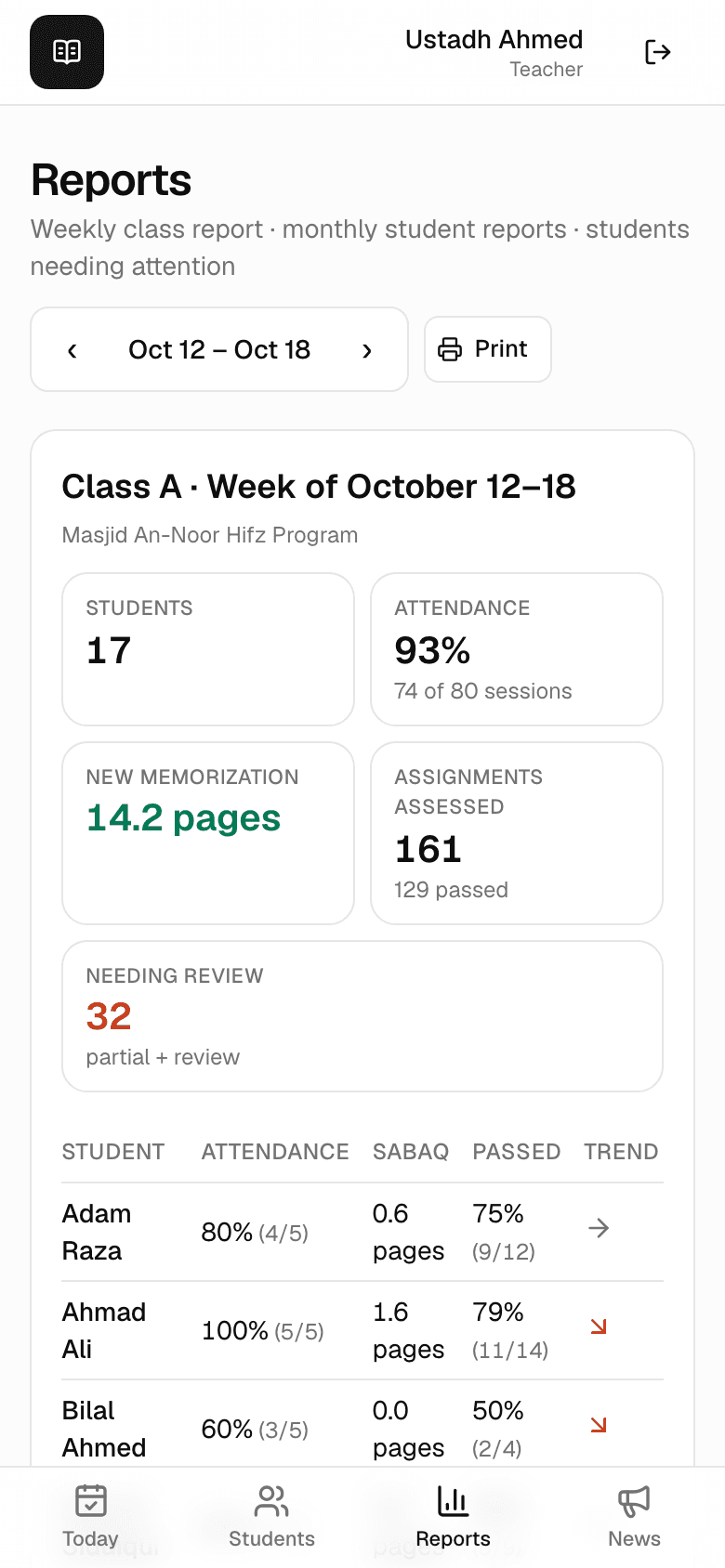
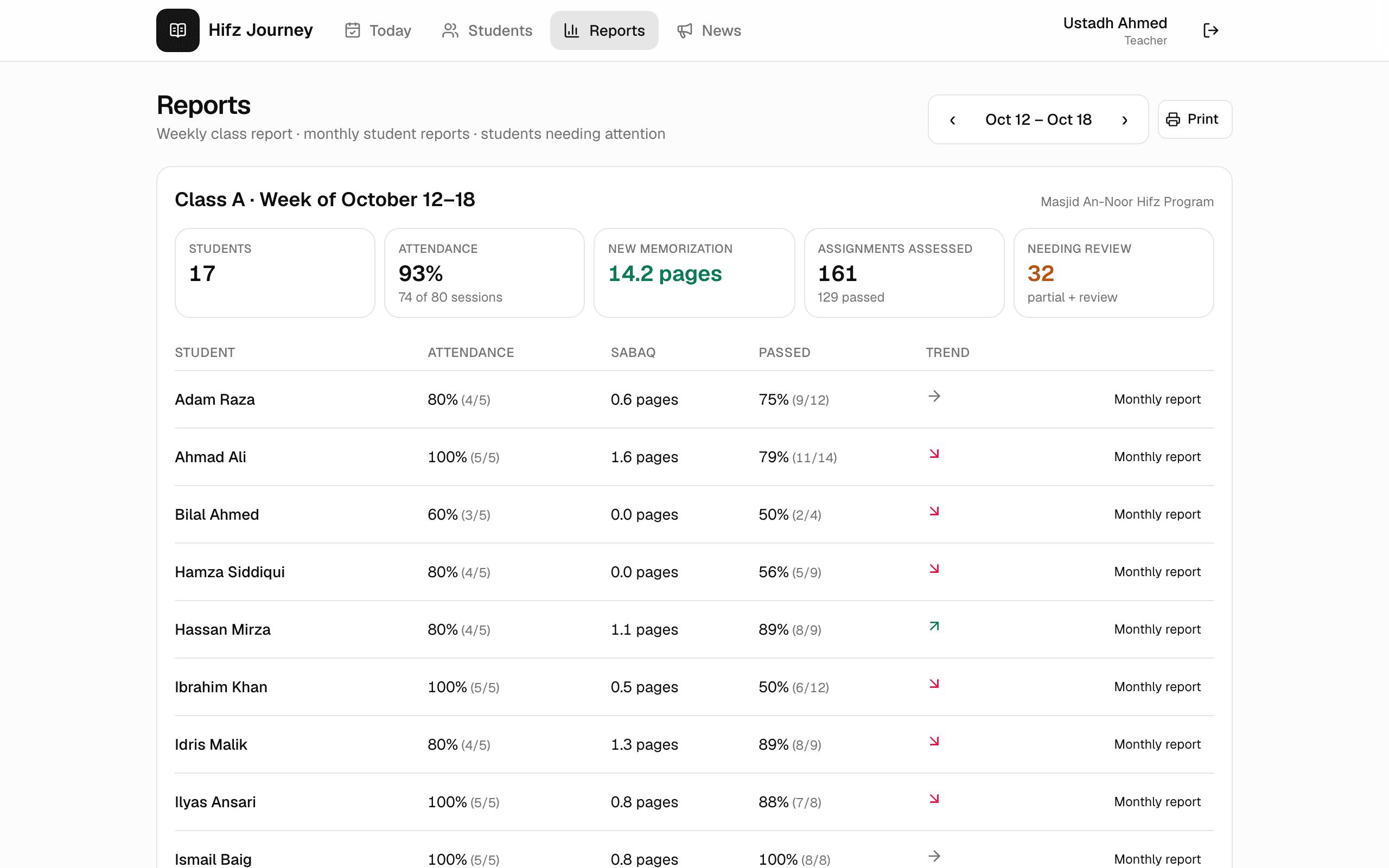
Reports opens the week: attendance, new memorization, assignments assessed and how many need review — then a row per student with a trend arrow against the previous week. Use ‹ and › to move between weeks, and Print for a clean paper copy.
The week, one screen The monthly student report
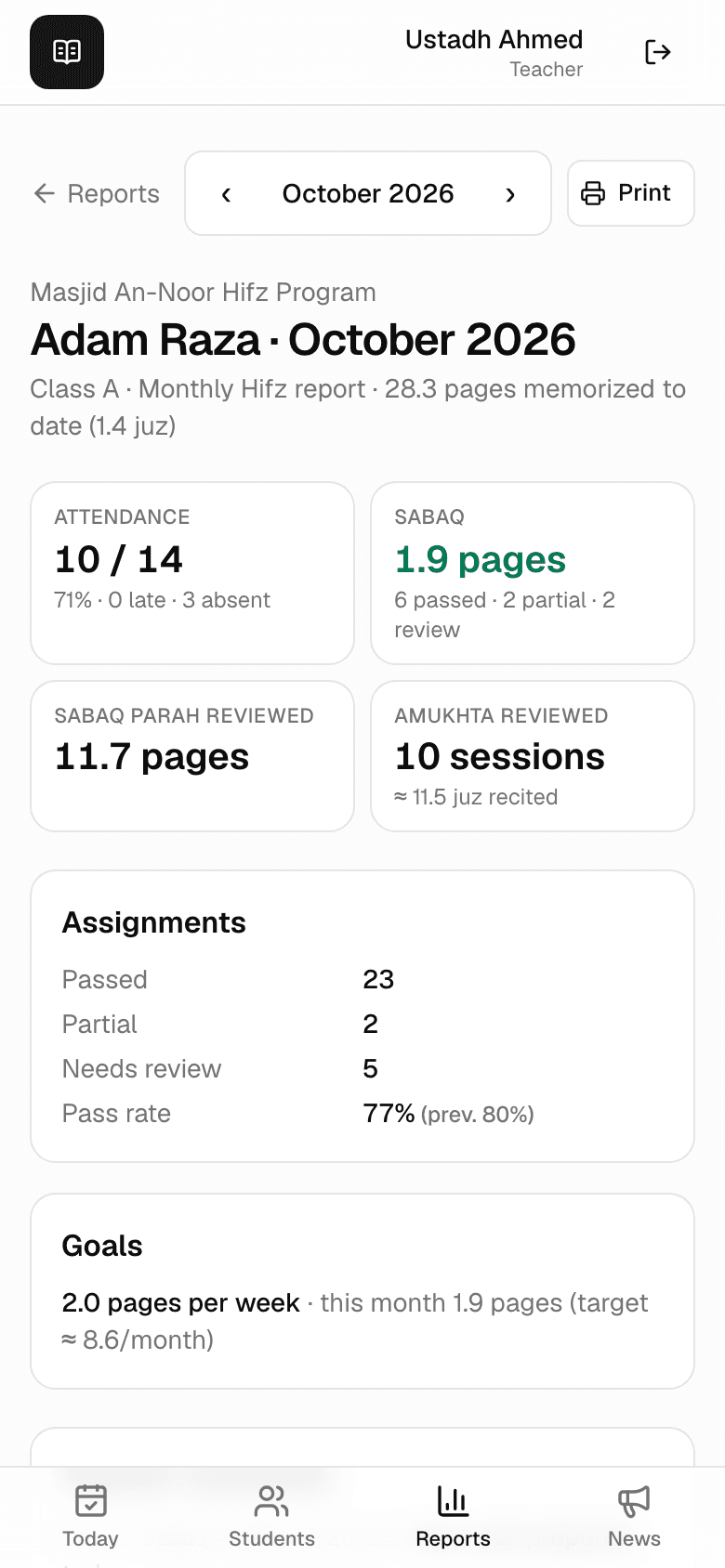
One student, one month: attendance, Sabaq memorized, Sabaq Parah and Amukhta revised, the pass/partial/review split, active goals, and the teacher comments recorded that month. This is the sheet to hand to a family at a parents' evening — print it from the same screen.
Made for sitting down with a parent
A phone in class, a computer when you sit down
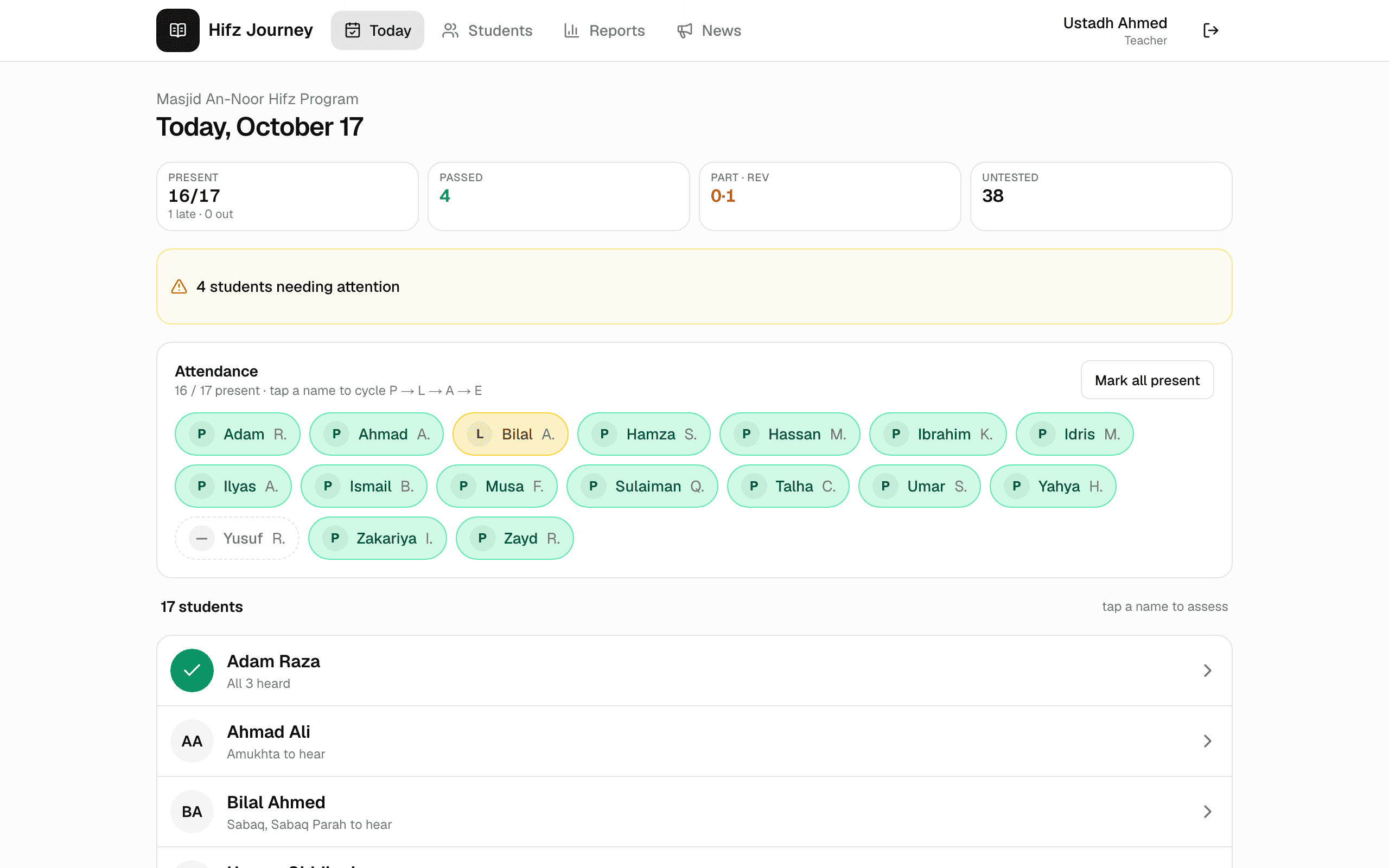
Every screen works at every size. Most teachers run class from a phone propped beside them and open the reports on a laptop at the end of the week — same account, same data, live.
iPhone & iPad — open hifzjourney.com in Safari → Share → Add to Home Screen.
Android — open it in Chrome → tap Install app when offered, or use the browser menu.
It opens full screen with no address bar. You'll find the same instructions under Your account once signed in.
﴿ وَلَقَدْ يَسَّرْنَا الْقُرْآنَ لِلذِّكْرِ ﴾
“And We have certainly made the Quran easy to remember.” — Al-Qamar 17
That's the whole job
Enroll once, record each day, let tomorrow plan itself, and the journal writes the story. Signed-in teachers can replay any of this as an interactive tour under Your account → Guided tours.
No account yet? Ask your program admin for an invitation — that's the only door in, on purpose.